Your product catalog. Excel. Both ways.
Export every WooCommerce product to a clean .xlsx file. Edit prices, names, descriptions, stock — whatever you need. Then import it all back, with a full preview before a single row is saved.
One plugin. Two instruments.
Export is read-only — your store is never touched. Import shows you exactly what will change before confirming. Both work on the same .xlsx file.
Simple & variable products
Both product types fully supported. Variants land on a separate sheet, linked to the parent product ID.
Full field selection
Choose exactly which of 16 fields to export. On import, choose which of 13 fields to update. Only checked fields are touched.
Filter before export
Filter by product type, publish status, and category. Export only what you need — nothing more.
Preview before import
See every field change side by side — current value vs. new value — before anything is written to your database.
Count validation
Compares raw database product count with WooCommerce API count. Warns you if they don’t match before you export.
Floating point protection
Excel stores decimal weights like 0.065 as scientific notation internally. The plugin normalises these automatically — no false “weight changed” alerts on import.
Categories & tags
Import creates missing categories and tags automatically — or links to existing ones. No manual prep required.
No Composer, no bloat
Self-contained, under 50KB installed. Zero external dependencies. Works on any standard WordPress hosting.
Three-layer safety
Self-deactivates before causing harm. Your store keeps running regardless of what happens inside the plugin.
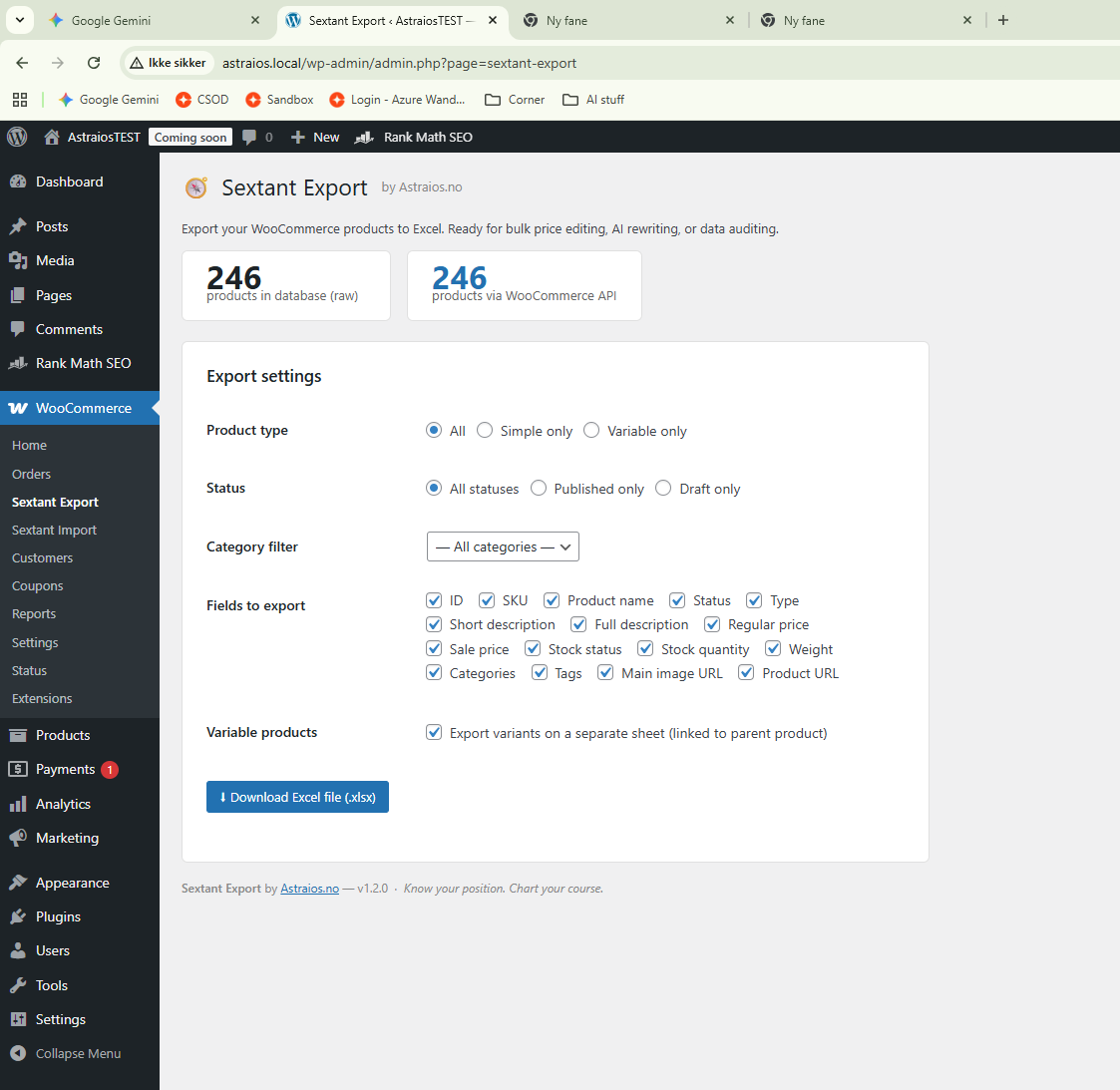
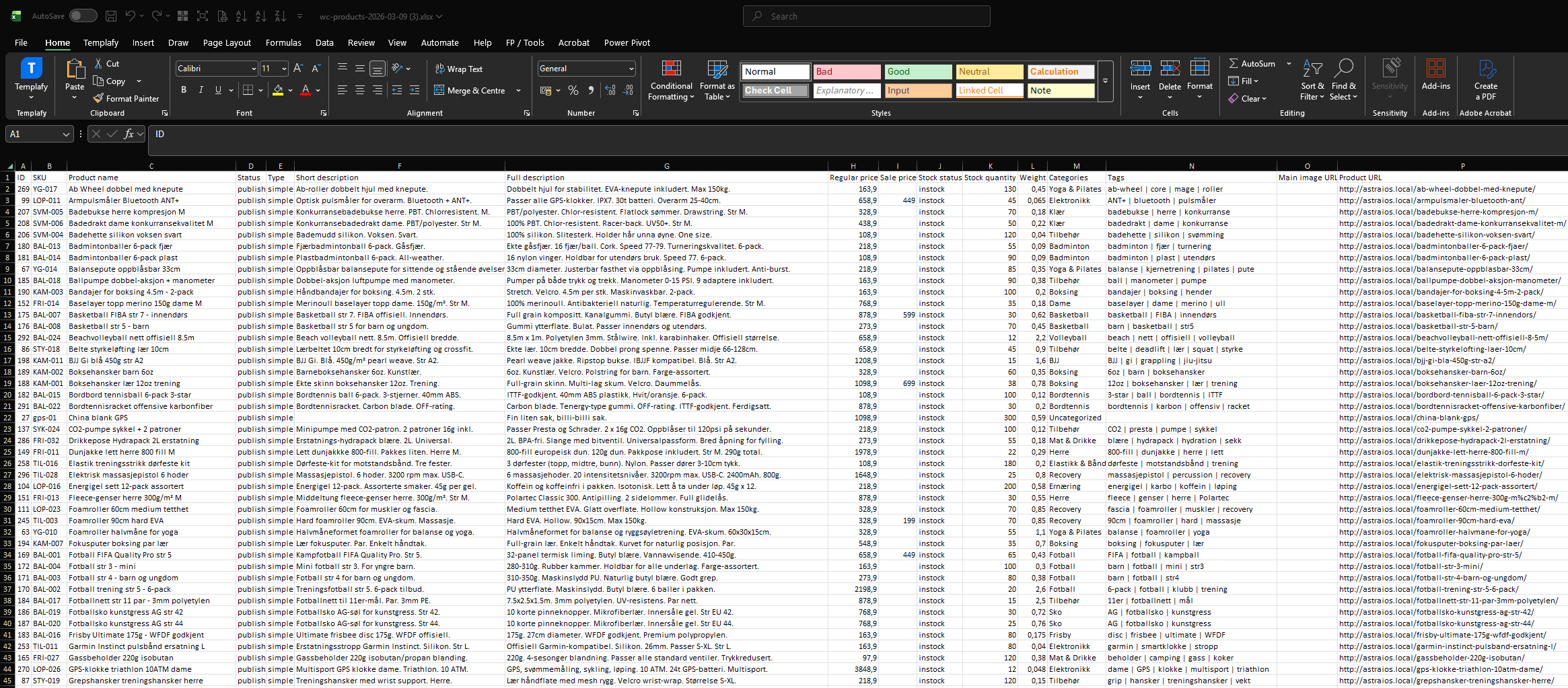
16 fields out. 13 fields back in.
Every field is optional — select only what you need. Fields marked with ✦ can be imported back after editing in Excel.
The full workflow.
A typical bulk-edit session from start to finish.
Install the plugin
Install from WordPress.org (WooCommerce → Plugins → Add New → search “Sextant Export”) or upload the .zip directly. Activate — the plugin checks your environment automatically.
Requires: PHP 8.0+ · WordPress 5.8+ · WooCommerce 5.0+ · PHP ZipArchiveGo to WooCommerce → Sextant Export
You’ll see your product count from the raw database and from the WooCommerce API. If they differ, a warning is shown — this usually means another plugin is filtering product visibility.
Choose your export settings
Product type: All, Simple only, or Variable only.
Status: All statuses, Published only, or Draft only.
Category filter: Optionally limit to one category.
Fields: Check the fields you want in the Excel file. All 16 are pre-checked by default.
Variable products: Keep “Export variants on a separate sheet” checked to get a Variants tab linked to parent IDs.
Click Download Excel file
The file downloads immediately as wc-products-YYYY-MM-DD.xlsx. Open it in Excel, Google Sheets, or LibreOffice Calc.
Edit in Excel
Change whatever you need — prices, names, descriptions, stock levels, categories. The file is plain .xlsx with no locked cells or special formatting. Save when done.
⚠ Do not change the ID column — it is used to match products on importGo to WooCommerce → Sextant Import
The import tool is a separate menu item under WooCommerce, installed with the same plugin.
Select your edited .xlsx file
Click “Choose file” and select the Excel file you edited. Only .xlsx files from Sextant Export are accepted — the plugin validates the file structure before proceeding.
⚠ Only files exported by Sextant Export are accepted. Other Excel files will be rejected.Choose which fields to update
Select from the 13 importable fields, grouped by category: Core product data, Pricing, Inventory & logistics, and Taxonomy. Fields not present in your Excel file are automatically skipped regardless of your selection.
💡 Only fields you edited need to be selected — deselect anything you didn’t changeReview the preview
Every product with at least one change is listed. Each changed field shows the current value → new value. Products with no changes are counted as “no change needed” and skipped. Products not found in your store are listed separately and skipped.
Nothing has been saved yet at this point.
Confirm — or cancel
Click “Confirm — update N products” to write the changes. Click Cancel to go back without saving anything.
After confirming, the result page shows how many products were updated, skipped, and not found.
✓ Import is complete — changes are live in your WooCommerce storeThree layers. Zero downtime.
Every Sextant plugin includes the same protection architecture. If something fails at any layer, the plugin disengages cleanly — your store never goes down because of us.
Activation check
At the moment of activation, the plugin checks PHP version (8.0+), WooCommerce presence (5.0+), and PHP ZipArchive. If any requirement is not met, the plugin self-deactivates with a clear error message. Your store is never exposed to unsupported code.
Runtime check
On every WordPress page load, the plugin verifies that WooCommerce is still active. If WooCommerce is deactivated after the plugin has been installed, all plugin functionality is locked and an admin notice is shown. No silent failures.
Execution wrap
Every export and import operation runs inside a try/catch. If an unexpected error occurs at runtime, the plugin self-deactivates, logs the error to a transient, and offers to send an automatic error report to Astraios.no. Your store keeps running.
Everything you need to know.
Full reference documentation for both Export and Import. Click any question to expand.
PHP: 8.0 or higher. The plugin uses typed properties, match expressions, and named arguments — all PHP 8 features.
WordPress: 5.8 or higher.
WooCommerce: 5.0 or higher.
PHP ZipArchive: Required to generate and read .xlsx files. This is enabled by default on virtually all shared hosting providers. If it is not available, the plugin will not activate and will tell you what to ask your host to enable.
There are two ways:
- From WordPress.org: Go to your WordPress admin → Plugins → Add New → search for “Sextant Export” → Install Now → Activate.
- Manual upload: Download the .zip file, go to Plugins → Add New → Upload Plugin → choose the file → Install Now → Activate.
After activation, you will find two new items under the WooCommerce menu: Sextant Export and Sextant Import.
Yes. Sextant Export & Import explicitly declares compatibility with WooCommerce High-Performance Order Storage (HPOS) and the Cart/Checkout blocks feature. You will not see any incompatibility warnings in your WooCommerce dashboard.
Since both tools only work with product data — not orders — HPOS has no functional impact regardless of whether it is enabled or disabled on your store.
Yes. Sextant Export & Import does not conflict with other export or import plugins. It uses its own admin pages and action hooks with the sxex_ prefix to avoid naming collisions.
The one important thing: Sextant Import only accepts files that were exported by Sextant Export. Files from WooCommerce’s built-in Product CSV importer, or other plugins, will be rejected. This is intentional — it lets the plugin guarantee what fields and IDs are present.
The export produces a standard .xlsx file — the native Excel 2007+ format. The file opens directly in Microsoft Excel, Google Sheets, LibreOffice Calc, Apple Numbers, and any other spreadsheet application that supports .xlsx.
There is no proprietary format, no locked cells, no special macros, and no software licence required to open or edit the file. What you get is a plain, clean spreadsheet.
wc-products-YYYY-MM-DD.xlsx based on today’s date.When “Export variants on a separate sheet” is enabled (it is by default), the exported file contains two sheets:
- Products — all parent products (simple and variable). For variable products, this row contains the product-level data: name, categories, description, etc.
- Variants — one row per variant, with columns for Parent ID, Parent SKU, Parent name, Variant ID, Variant SKU, Attributes, Regular price, Sale price, Stock status, Stock quantity, and Weight.
The Parent ID column in the Variants sheet is the link back to the parent product row. This makes it easy to use Excel’s VLOOKUP or just sort/filter to work on specific products.
Sextant Export is built to handle large catalogs. It uses WooCommerce’s own product retrieval API to collect all products in a single pass, and writes the .xlsx file using a streaming writer to keep memory usage predictable.
For very large stores — thousands of products — the practical ceiling is the PHP memory limit and execution time limit set by your hosting provider. Standard shared hosting typically allows 256MB memory and 30–60 seconds of execution time. Most stores with up to 10,000 products export without issue.
The export page shows two numbers: the raw database count and the WooCommerce API count. If they differ, a warning appears.
This happens when another plugin filters product visibility — for example, a B2B plugin that hides products from certain users, a multi-currency plugin with catalog rules, or a custom product access plugin. The WooCommerce API inherits those filters.
The export uses the WooCommerce API (which respects filters) so the actual number of products in your file may be lower than the raw database count. The warning is informational — it helps you verify the exported count against what you expected.
No. Export is completely read-only. It reads product data from your WooCommerce database and generates a downloadable file. It does not write, update, or delete any product data at any point.
The only write operation during export is a short-lived WordPress transient used to cache the product count for 60 seconds — purely for performance.
Products are matched by the WooCommerce ID column in the Excel file. This is the numeric ID that WooCommerce assigns each product — the same ID visible in the URL when you edit a product in the admin.
This means:
- Do not delete, move, or edit the ID column in Excel
- If a product ID in the file does not exist in your store, that row is skipped — it is listed in the preview as “not found” and counted in the result summary
- The file can contain more products than are in your store — extra rows are simply skipped
The preview page shows three summary numbers at the top:
- Will be updated — products with at least one field that has changed
- No change needed — products found in the store but where all selected fields already match
- Not found in store — product IDs in the file that do not exist in your WooCommerce installation
Below the summary, each product that will be updated is listed with every changed field showing the current value → new value.
Products where nothing changed are not listed — they’re just counted. Products not found are collapsible at the bottom.
Categories and tags in the Excel file use the same pipe-separated format as the export: Sports | Outdoor | Running
During import, for each term in the list:
- If a category/tag with that exact name already exists in your store, it is linked to the product
- If it does not exist, it is created automatically and then linked
The comparison replaces the entire taxonomy assignment for the product — so if you remove a category from the Excel file for a product, that category will be unlinked from that product on import.
When importing the Stock quantity field:
- If the cell contains a number, stock management is turned on for that product and the quantity is set
- If the cell is empty, stock management is turned off for that product (stock quantity becomes “not managed”)
This matches the way WooCommerce works internally — a product either has stock management enabled with a quantity, or stock management is disabled and the stock status (instock / outofstock / onbackorder) is set manually.
This is a known quirk of the .xlsx format. Excel stores certain decimal numbers in scientific notation internally — for example, 0.065 becomes 6.5000000000000002E-2 in the raw XML inside the file.
Sextant Export & Import automatically normalises these values back to clean decimals before comparison and import. You should not see any false weight-changed alerts.
If you do see a weight flagged as changed, it means the value actually differs — either because you edited it, or because WooCommerce stored it differently than the original raw number in the export.
Sale price follows the same logic as WooCommerce itself:
- If the sale price cell contains a number, it is set as the product’s sale price
- If the sale price cell is empty, the sale price is cleared — the product reverts to selling at regular price
This means you can clear a running sale for multiple products by deleting the contents of the sale price cells in Excel and importing the file.
The import always processes all rows in the file. However, products where none of the selected fields have changed are automatically skipped — they do not write to the database.
If you only want to update a subset of products, the cleanest approach is to delete the rows you don’t want to update from the Excel file before importing. Since matching is by ID, the remaining rows will be processed and the deleted rows simply won’t be in the file.
After a file is uploaded and parsed, the preview data is stored in a WordPress transient that expires after 30 minutes. If you leave the preview page open for more than 30 minutes without confirming, the session will expire.
If you see “Preview session expired”, simply go back to Sextant Import and upload the file again. The preview will be regenerated immediately.
The activation error message will tell you exactly what failed. Common causes:
- PHP version below 8.0 — Contact your hosting provider and ask them to upgrade PHP. Most hosts support PHP 8.2+ today.
- WooCommerce not installed or not activated — The plugin requires WooCommerce to be both installed and active before activation.
- WooCommerce version below 5.0 — Update WooCommerce in Plugins → Installed Plugins.
- PHP ZipArchive not available — Contact your hosting provider and ask them to enable the PHP zip extension.
If clicking “Download Excel file” does nothing or redirects to an error page, check these:
- Browser popup blocker — Some browsers block file downloads from form submissions. Allow popups/downloads from your WordPress admin URL.
- PHP memory limit — If your catalog is very large, PHP may run out of memory mid-generation. Check
php.inior ask your host to increasememory_limitto at least 256M. - Execution time limit — Similarly, a very large export may exceed PHP’s
max_execution_time. Ask your host to increase this, or export by category to reduce the size. - Plugin conflict — Try deactivating other plugins temporarily to see if one is intercepting the download request.
Sextant Import validates that the uploaded file was exported by Sextant Export by checking for the required ID column header in the first row.
Common causes for this error:
- You uploaded a file from a different export tool (WooCommerce CSV, another plugin)
- You saved the file in a different format (e.g., .csv or .xls instead of .xlsx) — always save as Excel Workbook (.xlsx)
- You accidentally deleted the header row, or the “ID” column header was renamed
- The file was saved by Excel in “Compatibility Mode” — try File → Save As → Excel Workbook (.xlsx)
The most common reasons changes don’t appear immediately:
- WooCommerce product cache — WooCommerce and many caching plugins cache product data. Try clearing all caches (WooCommerce → Status → Tools → Clear transients, and your caching plugin’s clear button).
- The preview showed “no change needed” — The values in your Excel file already matched what’s in the database. Check that you saved the file correctly in Excel before uploading.
- The field was not selected for import — If a field was unchecked in the “Fields to update” section, changes to that field in the Excel file were ignored.
- CDN or browser cache — Hard-reload your product page (Ctrl+Shift+R / Cmd+Shift+R) or check in a private browser window.
If the plugin self-deactivated, you will see a notice in the WordPress admin with a link to the error report page. The notice explains which safety layer triggered the deactivation.
The error report page shows the full error details and gives you the option to email the report directly to the Astraios.no development team. A copy of the report is also sent to your contact email address.
To re-activate the plugin after an error, go to Plugins → Installed Plugins and click “Activate” next to Sextant Export & Import.
- WordPress: 5.8 or higher. Tested up to 6.7+.
- WooCommerce: 5.0 or higher. Tested up to 9.x.
- PHP: 8.0 or higher. Tested on 8.1, 8.2, 8.3.
These requirements are checked at activation. Older versions are not supported and the plugin will refuse to activate on them.
WordPress Multisite: The plugin works per-site within a multisite network. It must be network-activated or activated individually per site. Each site’s WooCommerce products are exported/imported independently.
WPML / Polylang: The plugin exports and imports the default language version of each product. Translations managed by WPML or Polylang are not included in the export and will not be affected by the import.
Loco Translate / custom translations: The plugin is fully translatable — all strings use the sextant-export text domain.
Sextant Export retrieves products using WooCommerce’s own API, which returns custom product types registered by other plugins. Custom product types appear in the export with their type slug in the “Type” column.
However, custom product types may have fields that Sextant Export does not know about — for example, booking dates, subscription intervals, or bundle configurations. These custom fields are not included in the export or available for import.
Standard fields (name, price, stock, description, categories etc.) work identically for custom product types as they do for simple and variable products.
Ready in minutes.
No account. No email gate. No conditions. Install and export.